
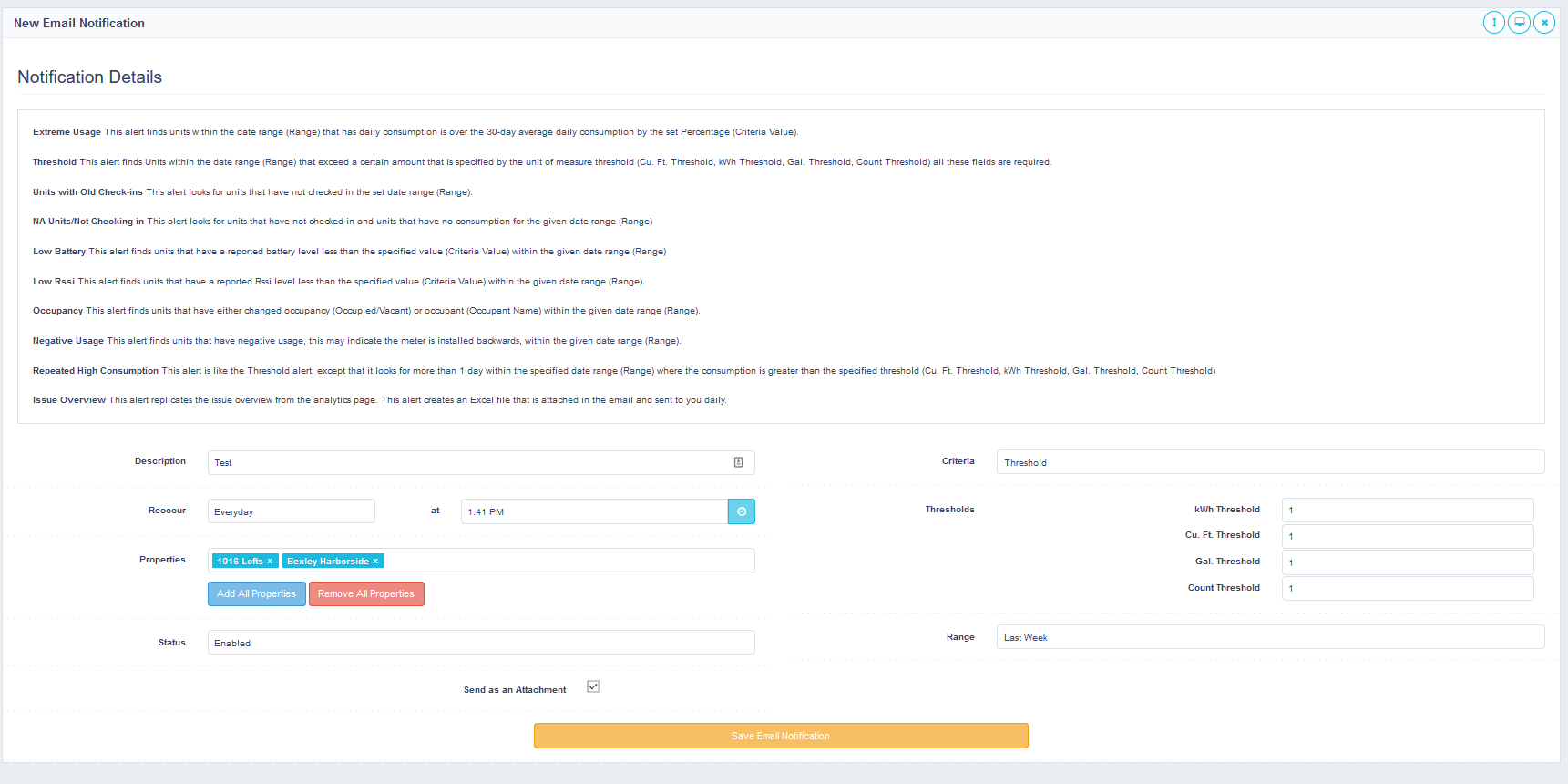
Setting up notifications can be accessed from going into your “user settings” in the top right-hand corner of the website and clicking on “manage notifications” in the settings pop-up. You can create, edit and delete notifications. These notifications are sent to the email configured on your profile.
When creating a notification, you can set a description of the notification and configure how often you receive the notification (daily, specific days, etc.). You can configure what time you want the email to be sent (all times are CST). You have the option to include the alert as an attached excel file in the email by using the “send as attachment” option.
You can specify that the alert only pertain to certain properties, individual properties, or you can select all properties.
The different criteria options are below -
Extreme Usage - This alert finds units within the date range (Range) that has daily consumption over the 30-day average daily consumption by the set Percentage (Criteria Value).
Threshold - This alert finds units within the date range (Range) that exceed a certain amount that is specified by the unit of measure threshold (Cu. Ft. Threshold, kWh Threshold, Gal. Threshold, Count Threshold). All these fields are required.
Units with Old Check-ins - This alert looks for units that have not checked in the set date range (Range).
NA Units/Not Checking-in - This alert looks for units that have not checked-in and units that have no consumption for the given date range (Range).
Low Battery - This alert finds units that have a reported battery level less than the specified value (Criteria Value) within the given date range (Range).
Low Rssi - This alert finds units that have a reported Rssi level less than the specified value (Criteria Value) within the given date range (Range).
Occupancy - This alert finds units that have either changed occupancy (Occupied/Vacant) or occupant (Occupant Name) within the given date range (Range).
Negative Usage - This alert finds units that have negative usage. This may indicate the meter is installed backwards, within the given date range (Range).
Repeated High Consumption - This alert is like the Threshold Alert, except that it looks for more than one day within the specified date range (Range) where the consumption is greater than the specified threshold (Cu. Ft. Threshold, kWh Threshold, Gal. Threshold, Count Threshold).
Issue Overview - This alert replicates the issue overview from the analytics page. This alert creates an Excel file that is attached in the email and sent to you daily.
You have the option to set the criteria value for some of these options, and well as the date range to check. The range will tell the notification how much historical data you want the notification to be based off of. You have no limit to the number of notifications that you can setup
Comments
0 comments
Article is closed for comments.