
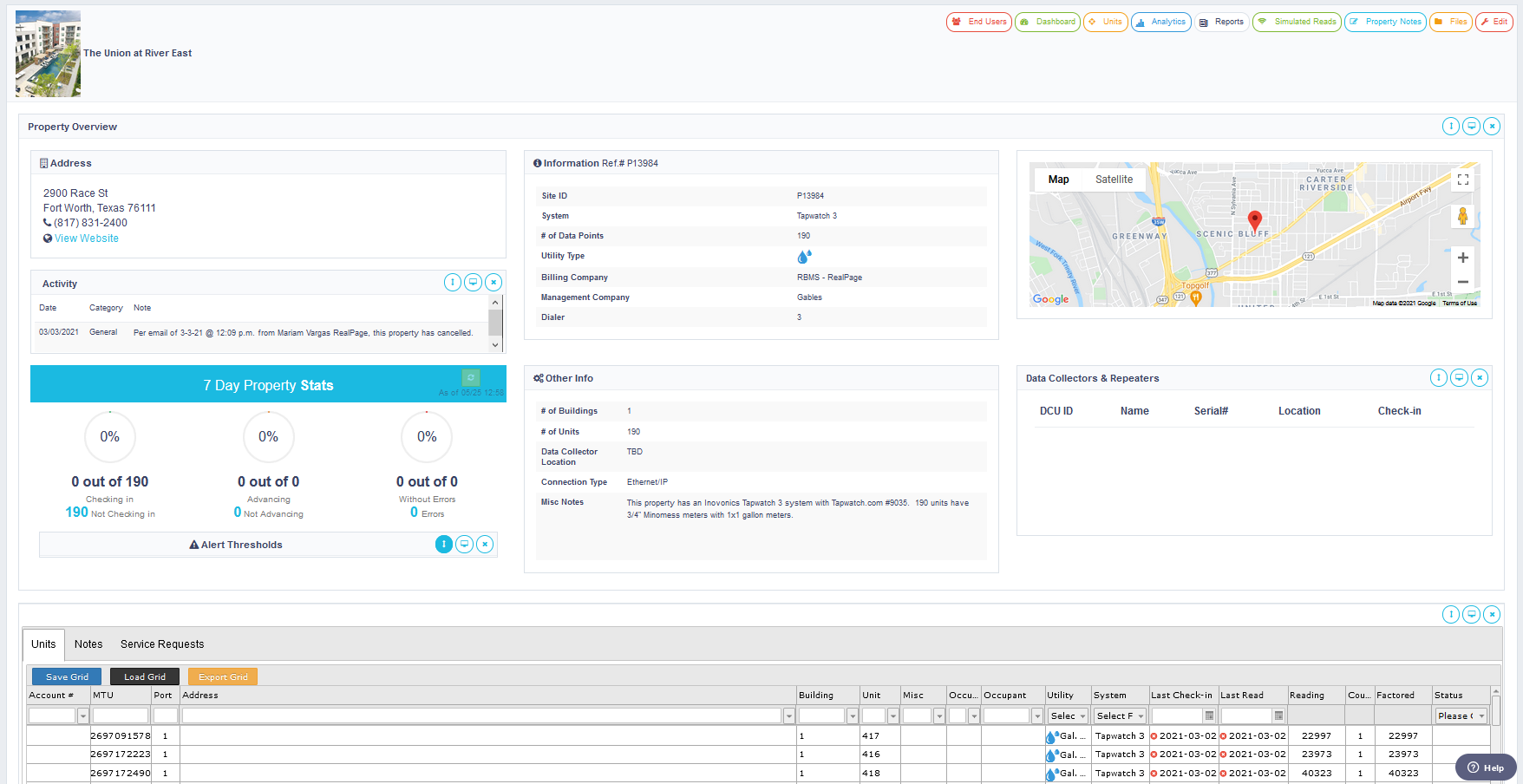
The Property Page is your main access point for a single property or group of units. Properties can be organized to suite your needs. Properties are most common grouped by individual properties, communities, or group by other demographics (like retail, residential, etc.…). The Property page has 3 Main Areas:
Property Menu Bar:
The Property Menu Bar is located horizontally on the top of the main content area for the property. This menu bar includes links to the following:
- End Users - a list of end users for this property and their approval status
- Property Dashboard – Coming Soon
- Units - lists all the units, notes, and service requests for the property
- Analytics – this will link you to the analytics section and load this property initially. The Analytics page is where you can diagnose issues at the property level. Once in analytics you can view other properties by selecting them from the left-hand column.
- Reports – This link will send you to the report section and initially load the selected property. The reports page is where you can create various reports used for billing, and other functions. You have the ability to access the reports for any other property in your portfolio.
- Simulated Reads – allows you to create simulated reads for a specific property. This is also known as Rubs in the industry.
- Property Notes – lists all the notes for a property in one area.
- Files – listing of files created daily with reading data for the specific property.
- Edit – allows you to edit the property and make changes to general data and alert thresholds.
- Property Permissions- lists all users and their permission levels.
Property Overview:
This section displays general information about the property such as address, billing company, management company, system types, and other relevant information. This section also shows issues and how the property is performing over the last 7 days.
Main Section:
The main section is the large area in the center of the page. This section is where most of the actual data is loaded and changes based on what you are looking at.
When you first load the property page the main section is loaded with the units. If you double click on a unit, it will take you to the unit’s page for that specific unit. click This area will change based on which pages you are on for this property.
Comments
0 comments
Please sign in to leave a comment.